
Auto-delete junk with Storage Sense: Step-by-Step Guide for Windows 11

Auto-delete junk with Storage Sense: Step-by-Step Guide for Windows 11

Your PC is quietly hoarding gigabytes of junk. Temporary files, old downloads and a full Recycle Bin pile up month after month, and most of us never think to clear them. The good news is that Windows 11 has a built-in tool that does the housekeeping for you. It is called Storage Sense, and you can set it up in about a minute.

What is Storage Sense?

Storage Sense is a Windows feature that automatically frees up space by removing files you no longer need. It can clear temporary files that apps have finished with, empty your Recycle Bin on a schedule and, if you choose, tidy your Downloads folder and cloud-synced files too.

Why it matters

A nearly full drive makes Windows slower and can stop updates from installing. Keeping a healthy amount of free space is one of the simplest ways to keep a PC running smoothly. Storage Sense does it in the background so you never have to remember.

Step 1: Open the Storage settings

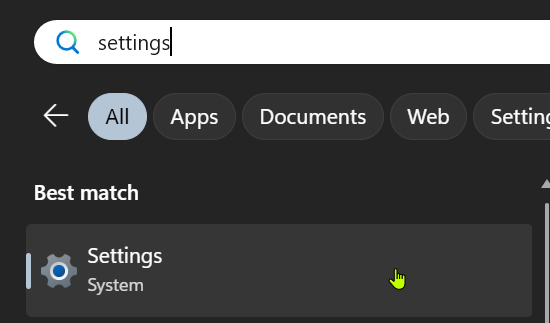
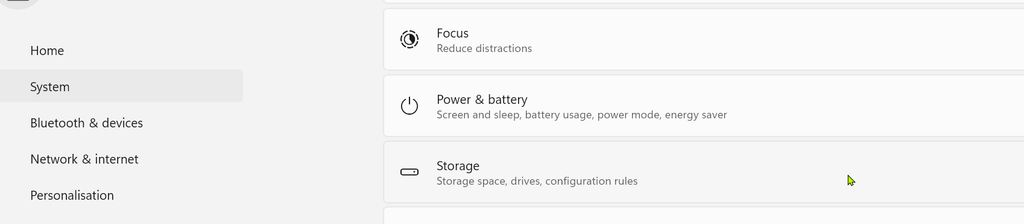
Open Settings, click System, then click Storage. At the top you will see how much space you are using and a breakdown by category, such as apps, temporary files and documents.
Step 2: Turn on Storage Sense

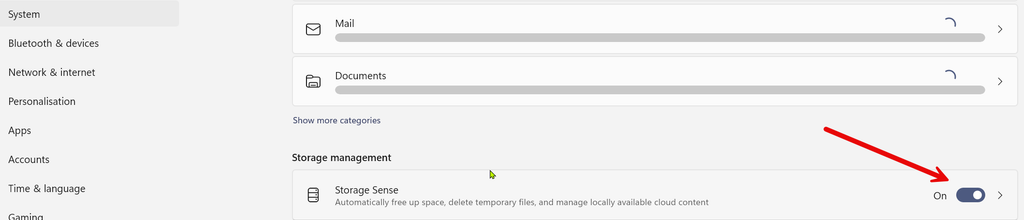
Scroll to Storage management and click Storage Sense. Switch on Automatic User content cleanup. This tells Windows to clean up on its own rather than waiting for you.
Step 3: Choose when and what to clean

Now tailor it to how you work:

  • Run Storage Sense: choose how often it runs. Options include every day, every week, every month or only when you are low on free space.
  • Delete files in my recycle bin if they have been there for over: pick a time limit, or choose Never if you like to keep control.
  • Delete files in my Downloads folder if they have not been opened for more than: this is set to Never by default. Think carefully before changing it, because anything you want to keep in Downloads could be removed.
  • Cloud content: if you use OneDrive, you can choose to make rarely used files online-only so they stop taking up space on your PC.

If you want an instant clean, scroll down and click Run Storage Sense now.

Pro tips and common mistakes

  • Do not rely on the Downloads setting if you use that folder as a filing cabinet. Move important files into Documents first.
  • Check the Temporary files section in Storage to see what is taking space before you delete anything. Windows shows a list and you can tick only the items you want gone.
  • Combine it with a regular restart. Some temporary files are only released when Windows restarts.
  • Storage Sense is not a virus scanner. It frees space but does not check for malware.

FAQ

Is Storage Sense safe? Yes. It only removes files that Windows treats as safe to clear, plus any categories you choose, such as old Recycle Bin items.

Does it work on Windows 10? Storage Sense also exists on Windows 10, but the menus look slightly different. You will find it under Settings, System, Storage.

Will it delete my photos or documents? Not unless they are in a folder you have told it to clean, such as Downloads or the Recycle Bin. Your Documents, Pictures and Desktop folders are not touched by the default settings.

Wrap-up

Two minutes of setup means Windows keeps itself tidy from now on. Watch the short video on this topic, share it with someone whose PC is always full, and follow for a new tech tip every day.

Check Windows Security and Run a Safe Scan

Windows Security provides a starting point if you suspect malware or want to check protection status.

Check the dashboard

Search Start for Windows Security, then open Virus & threat protection. Review warnings and the active provider. If another antivirus product is installed, its provider may be shown instead.

Run a suitable scan

Begin with Quick scan. For a wider check, open Scan options and select Full scan. Save your work before running Microsoft Defender Offline scan because it restarts the PC.

Handle results carefully

Follow the security app’s instructions and review Protection history. Do not turn off protection or add an exclusion at the request of a pop-up or unknown caller. Contact your employer’s IT team if company data may be involved.

Further reading: Microsoft Support: virus and threat protection.

Fix Windows 11 Wi-Fi Problems Step by Step

Before changing network settings, find out whether the problem affects one PC or the whole connection.

Check the scope

Try a second device on the same Wi-Fi. If no device connects, check the router and provider status. If only one PC fails, note the message it shows and check whether Airplane mode is on.

Try reversible steps

Reconnect to your usual Wi-Fi and restart the PC. If you control the router, restart it according to the provider’s instructions; do not reset a shared or managed router without permission.

Use the Windows troubleshooter

Run the Network and Internet troubleshooter through Get Help on Windows 11. If a VPN or company network is involved, contact IT before changing DNS or IP settings. Keep a record of what worked and what did not.

Further reading: Microsoft Support: Wi-Fi issues.

What to Do When Windows Update Fails

A failed update is frustrating, but the error code and a few basic checks can help narrow down the problem.

Record what failed

Open Settings > Windows Update. Write down the failed update name and any error code. Restart the PC, confirm that it has a stable connection and check available storage.

Use built-in help

Run the Windows Update troubleshooter in the Get Help app and follow its prompts. Restart if requested and retry the update once. On a managed PC, the employer may control the update schedule.

Escalate with evidence

If the update still fails, note what the troubleshooter reported and check Microsoft’s guidance for your particular error. Avoid repair downloads promoted through unknown search adverts. Back up important data before more advanced repair work.

Further reading: Microsoft Support: updating Windows.

Use DISM and SFC to Check Windows System Files

DISM and System File Checker are built-in repair tools for suspected Windows system-file problems. They are not routine speed boosters.

Prepare first

Save your work and back up important files. On a work device, get permission from IT. Ensure you have an administrator account and allow time for each command to finish.

Run Microsoft’s sequence

Search Start for Command Prompt and choose Run as administrator. Type DISM.exe /Online /Cleanup-image /Restorehealth and wait for completion. Then type sfc /scannow and wait until it reaches 100%.

Keep the result

Record the final message and restart if prompted. If the repair fails or says it could not fix files, save the exact output for a technician rather than repeatedly running commands without a plan.

Further reading: Microsoft Support: System File Checker.

Spot Phishing Emails Before You Click

An unexpected message asking for urgent payment, a password reset or a one-time code deserves a pause even when its logo looks familiar.

Examine the request

Check the sender address, unusual wording and whether the request matches something you expected. A display name is easy to imitate, and polished spelling does not prove a message is genuine.

Verify through another route

Do not use a link or telephone number from the suspicious message. Open the organisation’s official app or enter its known web address yourself. For an invoice, use a supplier contact number you already trust.

If you responded

If you entered a password, change it on the real service and review your account security. If you downloaded a file, stop opening it, run a security scan and inform your workplace IT team where relevant.

Further reading: NCSC: spotting scams.

Speed Up a Slow Windows 11 PC Without Risky Cleaner Apps

Is your Windows 11 PC slow at startup, while browsing, or only in one app? Identify the pattern first. The safest performance improvements use tools already in Windows.

Check the basics

Restart the PC, then open Settings > Windows Update and check for updates. In Settings > System > Storage, check the free space on the system drive and review Cleanup recommendations. Read each item before deleting anything, particularly Downloads.

Reduce startup load

Press Ctrl + Shift + Esc and select Startup apps in Task Manager. Disable an app you recognise but do not need immediately after signing in. Restart and check whether this helps. Disabling startup does not uninstall the app.

If it is still slow

Open Task Manager while the problem occurs to see whether a particular app is using a lot of memory, CPU or disk. Avoid registry cleaners and random speed-up tools. On a work PC, ask IT before changing security or management software.

Further reading: Microsoft Support: PC performance.

Make a Simple 3-2-1 Backup Plan

A 3-2-1 backup plan keeps three copies of important data, uses two types of storage and keeps one copy off-site.

Map your copies

The working files on your PC are the first copy. An external drive can hold another; an off-site backup service or securely stored drive can provide the third. Make sure the plan covers files outside the usual Documents folder.

Consider deletion and ransomware

Sync alone may copy accidental deletions to other devices. Review version history and retention. Keep at least one backup protected from the same device and account risks as your everyday files.

Test a restore

Once a month, restore a harmless file from your backups and open it. Record when each backup last succeeded, where it is kept and who can access it. Include website and database exports if you run an online business.

Further reading: NCSC: data security.

Free Up Storage Space in Windows 11 Safely

A nearly full system drive can interrupt updates and make routine work frustrating. Check what is occupying the space before removing files.

See where the space went

Open Settings > System > Storage. Windows groups files by type. Select Cleanup recommendations to review files you may be able to remove. Check Downloads and Recycle Bin carefully: they can contain important documents.

Use Storage Sense thoughtfully

Open Storage Sense from the Storage screen. Before enabling automatic cleanup, read its settings for temporary files, Recycle Bin and Downloads. If you use OneDrive, check whether cloud files will remain available offline.

Move or uninstall rather than guess

Move photos and videos only after verifying a backup. Uninstall unused apps from Settings > Apps > Installed apps. Do not delete folders inside Windows or Program Files to reclaim space.

Further reading: Microsoft Support: free up drive space.