
Auto-delete junk with Storage Sense: Step-by-Step Guide for Windows 11
Your PC is quietly hoarding gigabytes of junk. Temporary files, old downloads and a full Recycle Bin pile up month after month, and most of us never think to clear them. The good news is that Windows 11 has a built-in tool that does the housekeeping for you. It is called Storage Sense, and you can set it up in about a minute.
What is Storage Sense?
Storage Sense is a Windows feature that automatically frees up space by removing files you no longer need. It can clear temporary files that apps have finished with, empty your Recycle Bin on a schedule and, if you choose, tidy your Downloads folder and cloud-synced files too.
Why it matters
A nearly full drive makes Windows slower and can stop updates from installing. Keeping a healthy amount of free space is one of the simplest ways to keep a PC running smoothly. Storage Sense does it in the background so you never have to remember.
Step 1: Open the Storage settings
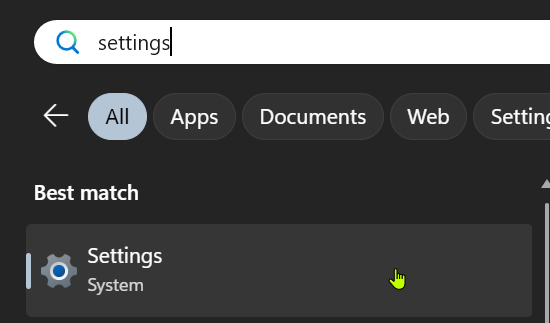
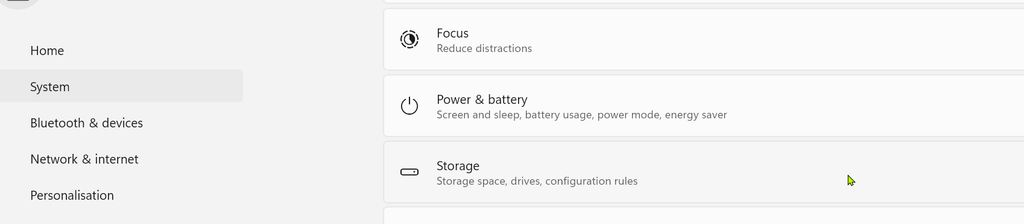
Open Settings, click System, then click Storage. At the top you will see how much space you are using and a breakdown by category, such as apps, temporary files and documents.
Step 2: Turn on Storage Sense
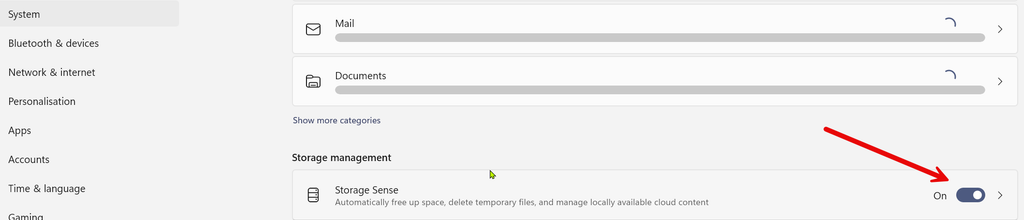
Scroll to Storage management and click Storage Sense. Switch on Automatic User content cleanup. This tells Windows to clean up on its own rather than waiting for you.
Step 3: Choose when and what to clean
Now tailor it to how you work:
- Run Storage Sense: choose how often it runs. Options include every day, every week, every month or only when you are low on free space.
- Delete files in my recycle bin if they have been there for over: pick a time limit, or choose Never if you like to keep control.
- Delete files in my Downloads folder if they have not been opened for more than: this is set to Never by default. Think carefully before changing it, because anything you want to keep in Downloads could be removed.
- Cloud content: if you use OneDrive, you can choose to make rarely used files online-only so they stop taking up space on your PC.
If you want an instant clean, scroll down and click Run Storage Sense now.
Pro tips and common mistakes
- Do not rely on the Downloads setting if you use that folder as a filing cabinet. Move important files into Documents first.
- Check the Temporary files section in Storage to see what is taking space before you delete anything. Windows shows a list and you can tick only the items you want gone.
- Combine it with a regular restart. Some temporary files are only released when Windows restarts.
- Storage Sense is not a virus scanner. It frees space but does not check for malware.
FAQ
Is Storage Sense safe? Yes. It only removes files that Windows treats as safe to clear, plus any categories you choose, such as old Recycle Bin items.
Does it work on Windows 10? Storage Sense also exists on Windows 10, but the menus look slightly different. You will find it under Settings, System, Storage.
Will it delete my photos or documents? Not unless they are in a folder you have told it to clean, such as Downloads or the Recycle Bin. Your Documents, Pictures and Desktop folders are not touched by the default settings.
Wrap-up
Two minutes of setup means Windows keeps itself tidy from now on. Watch the short video on this topic, share it with someone whose PC is always full, and follow for a new tech tip every day.